
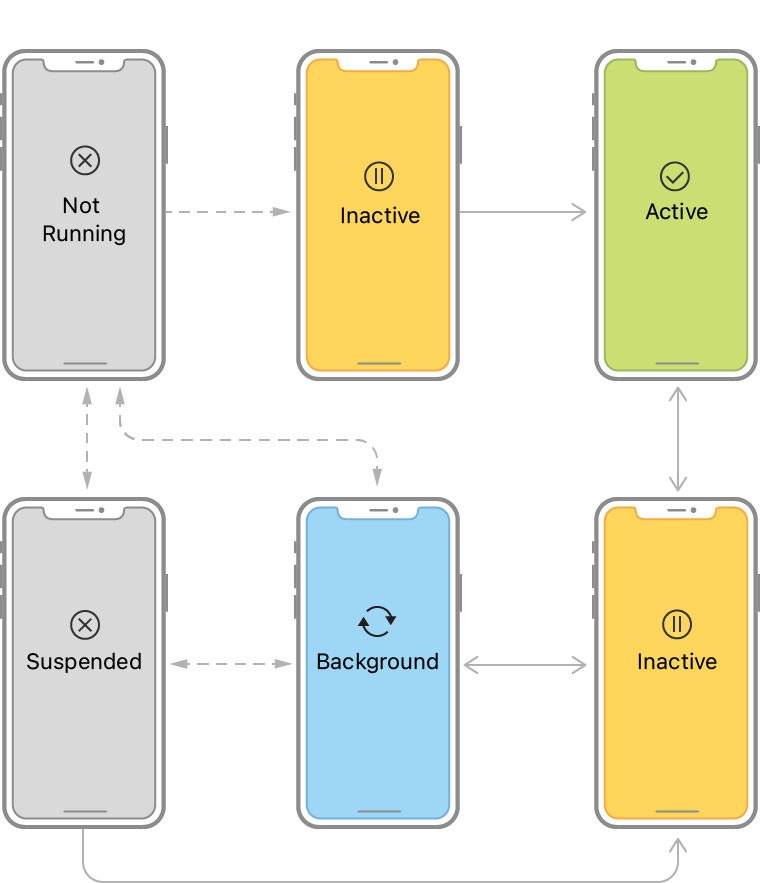
A state determines what an app can do and what it can not. So, it is essential to understand an app’s life cycle to assign right tasks at the right time.
App States:
1. Not Running/Unattached: During this state, an app does not consume any resource as the app has not been clicked to open yet.
2. Foreground Inactive: The app is in Foreground Inactive while app setups are being done and a splash screen is visible to the user.
3. Foreground Active: During this state, the app is visible to the user. The app gets highest priority to consume system resources over other tasks on the phone. The user usually interacts with the app’s UIs at this phase.
4. Foreground Inactive: This phase takes place when the user minimizes the app to use something else. At this stage, the app still is on RAM and thus is able to access system resources.
5. Background: When the app is not visible in the foreground but tasks (such as playing an audio file or downloading a file over the internet) are running behind the screen, this is called a Background state. During this phase, an app has limited access to system resources.
6. Suspended/Terminated: The app enters into this state as the user kills the app. The app completely loses access to system resources usually at this state.
The above mentioned states are managed by the following Swift methods (excluding parameters for the ease of understanding here) in an iOS project:
1. application(): This method initiates the setup tasks essential to run the app.
2. sceneWillEnterForeground(): The user sees the app visible on the screen after this method is called.
3. sceneDidBecomeActive(): This method informs the delegate that the app is active on the screen.
4. sceneWillResignActive(): When the app is about to leave the foreground state (screen), this method is called.
5. sceneDidEnterBackground(): This method informs the delegate that the app is in background state.
6. applicationWillTerminate(): Before the app is about to be terminated, this method is called.
An iOS app goes through these phases as an user interacts with the app. The featured image can be found on Apple’s developer documentation link.
 Tishan's Wall